
Updating your shop logo is a two-step process of selecting your logo display size and uploading your logo image. Well ProZ supports both square and horizontal logo displays. Follow the instructions below to upload your logo or edit your existing logo.
Customize Shop Logo
1. Click here.
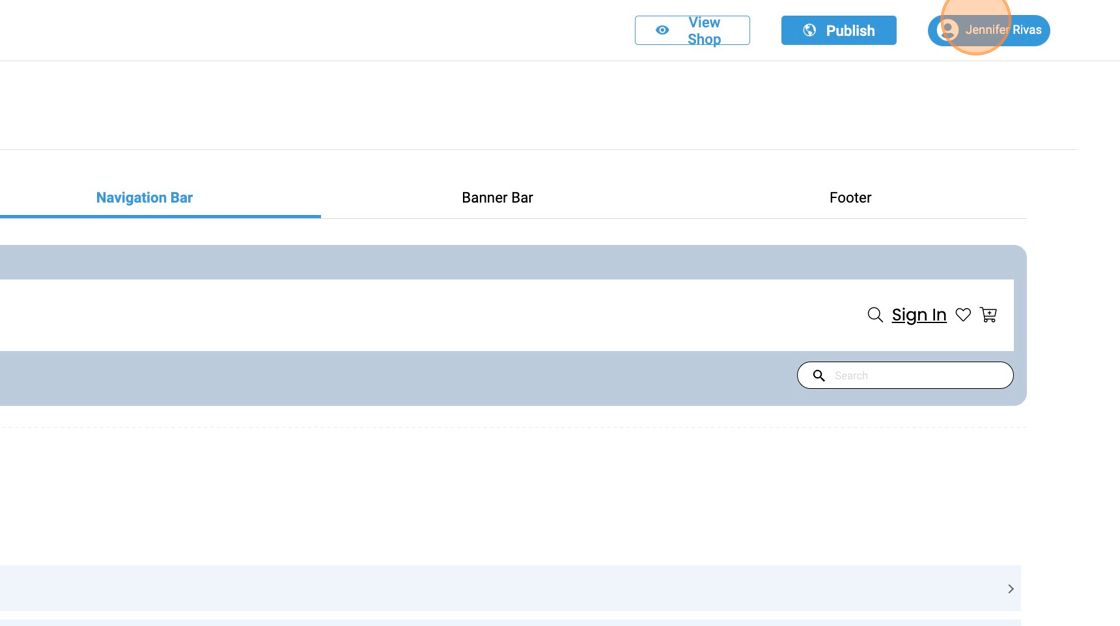
2. Click "Account Settings."

3. Click "Style Setting"

4. Click "Navigation Bar"

5. Click this dropdown
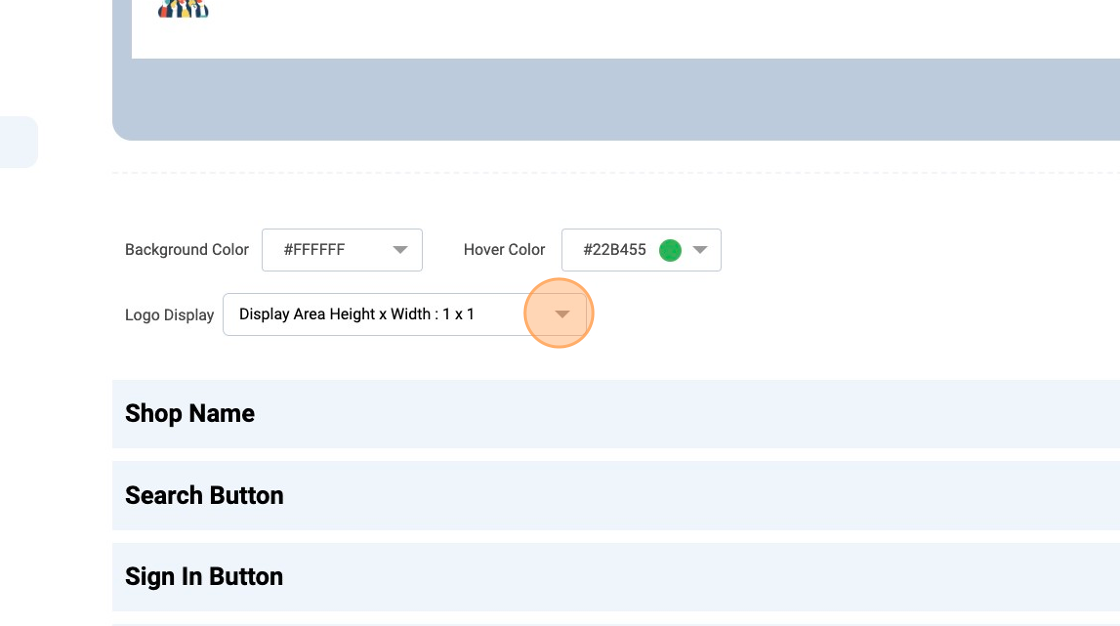
6. Click "Display Area Height x Width : 1 x 1" for square logo display

7. Click "Display Area Height x Width : 1 x 2" for horizontal logo display

8. Click "Theme"

9. Click here to upload your shop logo

10. Click "Submit" to save changes

11. Click "View Shop" to preview

12. Your new logo will be displayed on the top left corner of your shop

For more assistance, please contact support through Live Chat or email support@vibrant-america.com.