
Did you know you can customize your banner with style adjustments? Follow the steps below to find the customization fields or watch the tutorial for an in-depth look.
Edit the banner bar and add a tagline to your shop
1. Click Account Settings under your profile name

2. Click Style Adjustments and select Banner Bar


4. Toggle the banner on or off to make it visible or remove
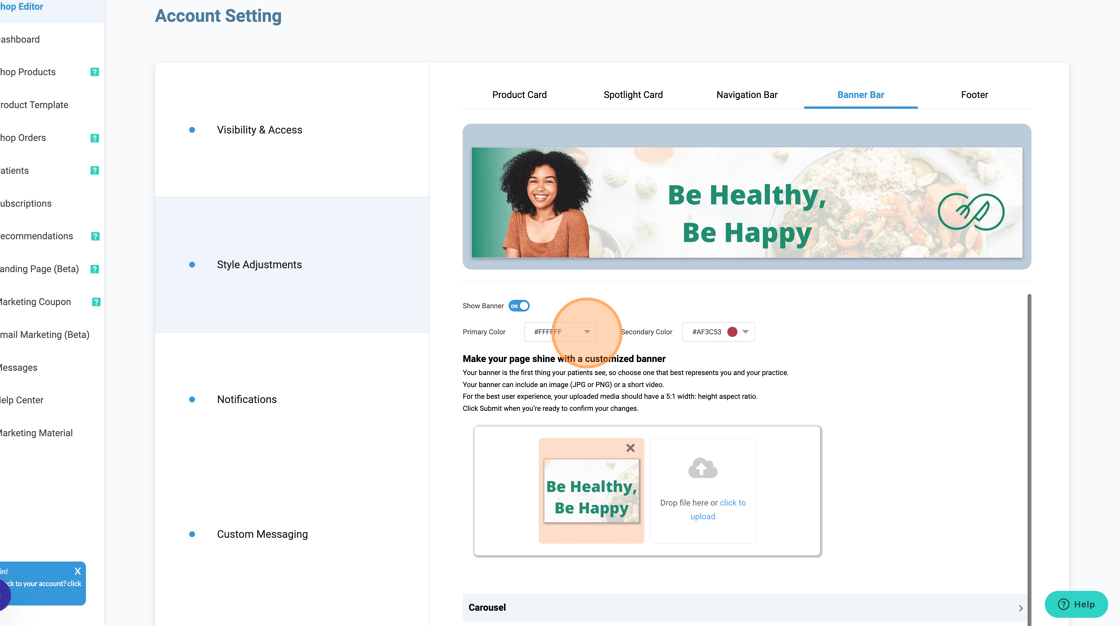
7. Click here to edit primary and secondary colors
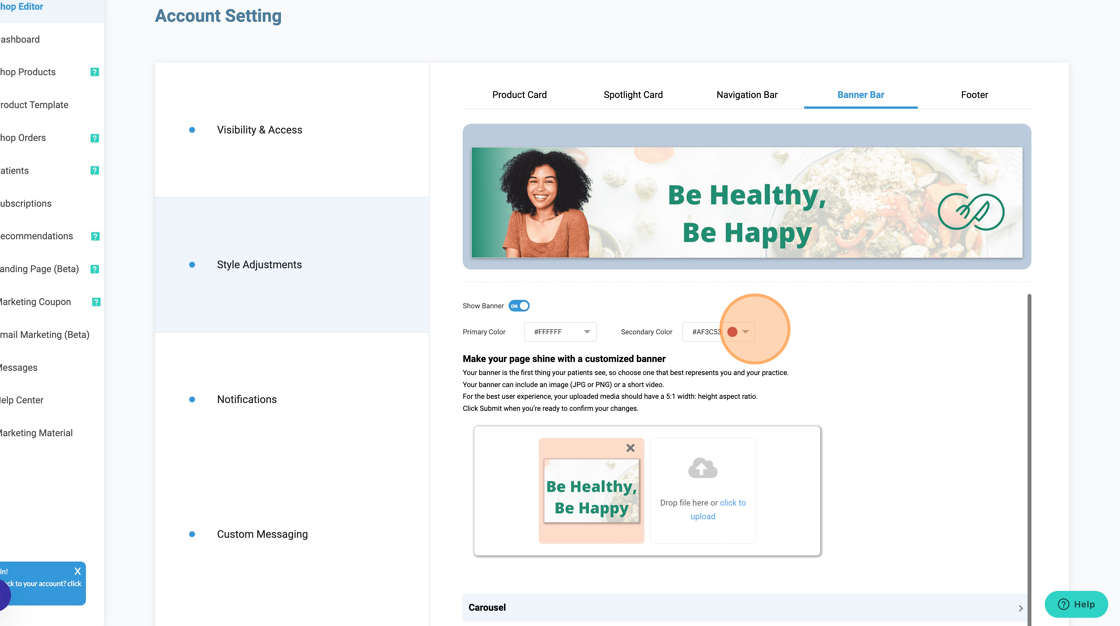
8. Click here to add carousel

9. Select carousel style

10. Click here to upload one or more banner images. We recommend a 3000 x 800 size.

11. Click here to toggle the tagline on if you choose

12. Click this text field to add your tagline

13. Type tagline text
14. Click font dropdown

15. Select font

16. Click here for font color dropdown

17. Click this text field to enter font size

18. Click Submit to save changes

19. Click View Shop to preview your shop in a new tab

For more assistance, please contact support through Live Chat or email support@vibrant-america.com.